|
Main Menu > Warehouse > Print Picking Slips & Picking Run |


The Print Picking Slips & Picking Run program allows users to generate and print picking slips for sales orders for goods to be picked ready for despatch. Please refer to Picking, Packing & Despatch Process (Picking Run) for more information.
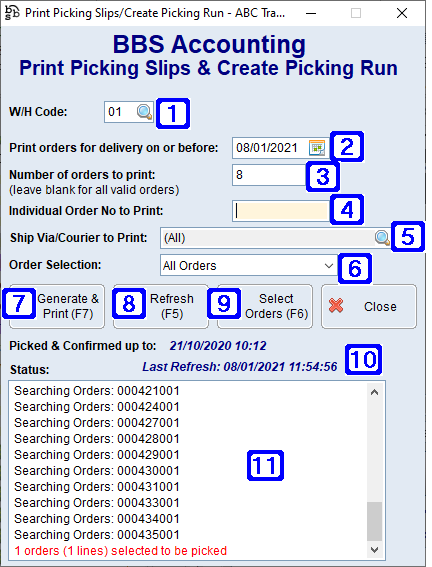
Print Picking Slips & Create Picking Run Screen
|
W/H Code - Allows users to choose which warehouse to print picking slips and generate a picking run for |
|
Print orders for delivery on or before - Allows users to select to only print orders on or before a particular pick date |
|
Number of orders to - Allows users to select how many orders to print (leave blank to print all valid orders) |
|
Individual Order No to Print - Allows users to only print a particular sales order number |
|
Ship Via/Courier to Print - Allows users to only print sales orders for a particular Ship Via/Courier method by clicking the |
|
Order Selection •All Orders - Will select all orders using the selected criteria •New Orders Only - Will select only new orders (i.e sales orders that have not yet been despatched at all) using the selected criteria •Backorders Only - Will select only orders that have been invoiced previously i.e are backorders using the selected criteria |
|
Generate & Print (F7) - Will generate and print orders using the selected criteria |
|
Refresh (F5) - Refreshes the screen to reflect any entries that may have been updated since opening the Print Picking Slips & Picking Run screen |
|
Select Orders (F6) - Allows users to select from a list of orders that will be generated on this picking run. Please refer to Select Orders to Print for more information. |
|
Picked & Confirmed up to - Displays the date and time the latest order has been picked and confirmed |
|
Status - Displays a list of the sales order numbers being searched, returning a result with the number of sales orders and lines to be picked |


 . Please refer to


Users can select from a list of ship via/courier methods to only print orders to be shipped using the selected method/s.
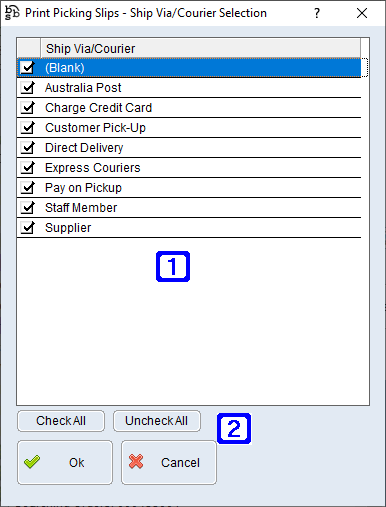 Print Picking Slips - Ship Via/Courier Screen
|
Users can select to print one or more specific order/s that will be generated on this picking run.
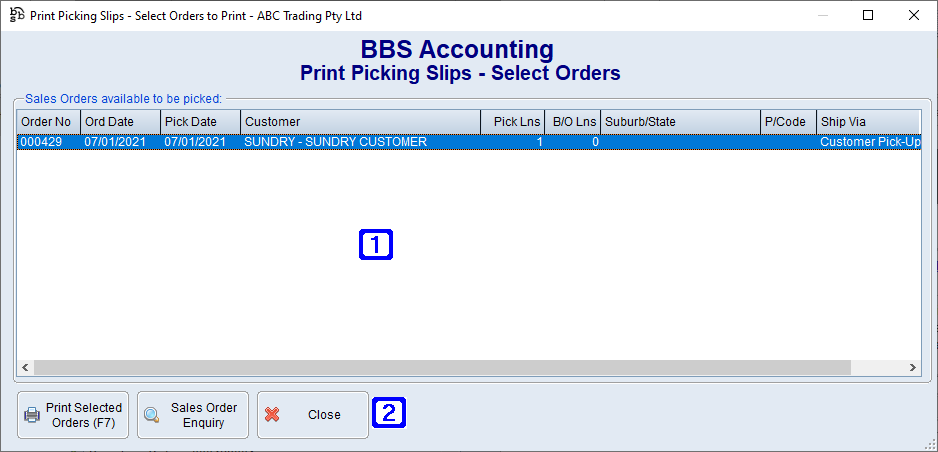 Print Picking Slips - Select Orders Screen
|